1Step 1 — Open Settings
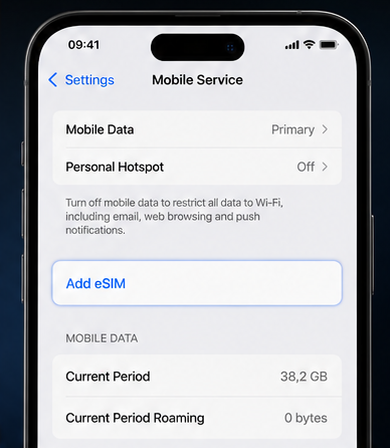
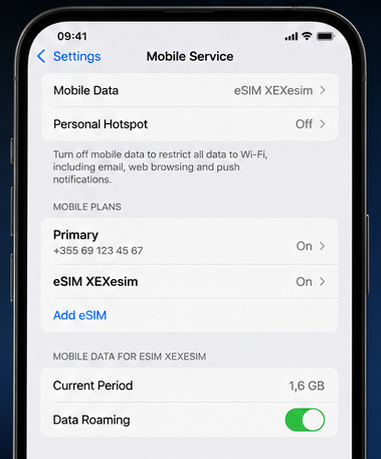
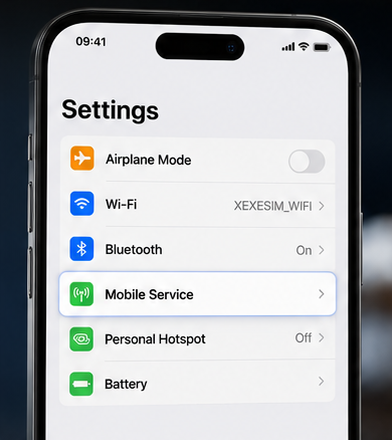
Open iPhone Settings and go to the cellular menu.
Settings → Cellular / Mobile Service
Install guide
After purchasing, you will receive a QR code by email. Follow the steps below for your device.
eSIM compatibility
Most smartphones released after 2019 support eSIM. Below are some of the most common compatible models:
Your phone supports eSIM.
Your phone isn't carrier-locked.
You're connected to Wi‑Fi during installation.
You have your QR code ready to scan.
Works on iPhone XR or newer with iOS 12.1+
Open iPhone Settings and go to the cellular menu.
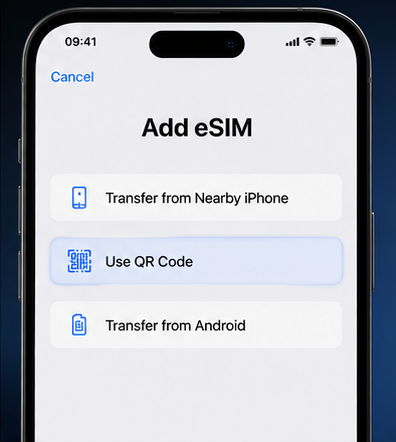
Tap the option to add a new eSIM plan to your phone.
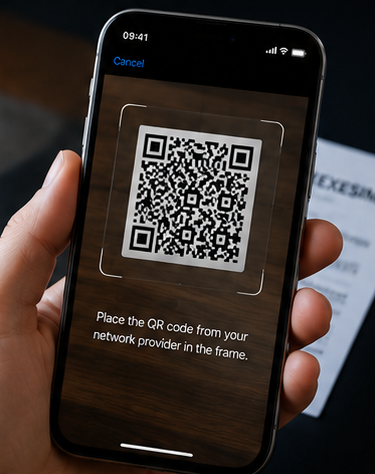
Select Use QR Code. Your camera will open automatically.
Scan the QR code you received from XEXeSIM. Your phone will recognise the eSIM plan.
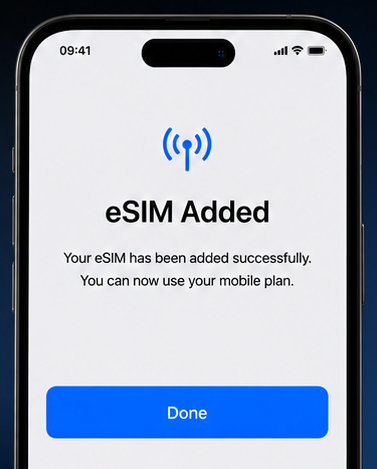
Wait while your phone adds the eSIM. Tap Done when finished.
Go to Settings → Cellular, enable the eSIM, set it as Mobile Data and turn on Data Roaming.
This is essential for internet to work abroad.
Samsung, Google Pixel, OnePlus and other eSIM-compatible devices
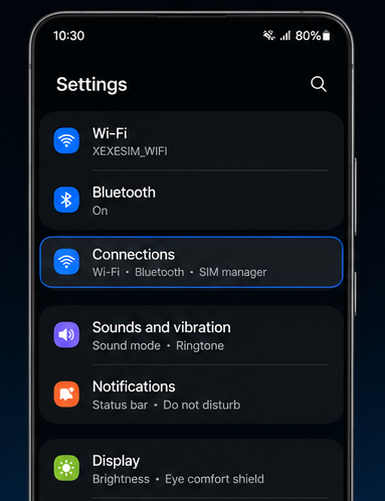
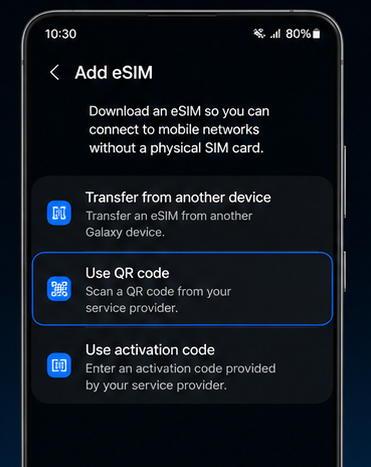
Open Settings on your Samsung / Android device.
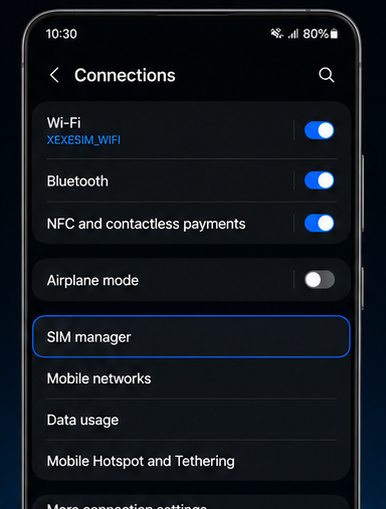
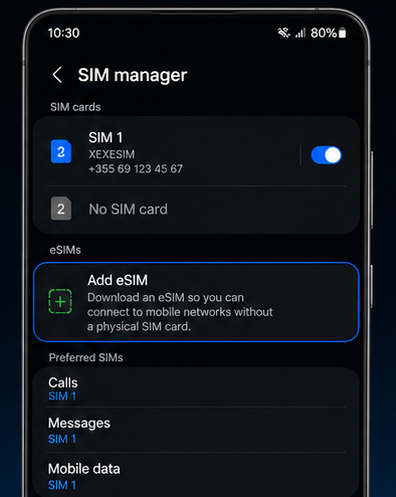
Tap Connections and then SIM Manager.
Tap Add eSIM or Add Mobile Plan to start the setup.
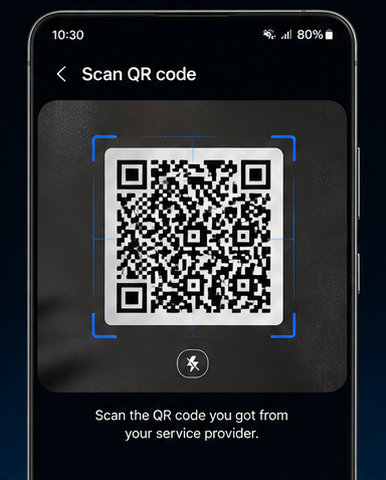
Choose Scan QR Code and scan the code you received from XEXeSIM.
Your phone will add the eSIM plan automatically. Tap Confirm or Add.
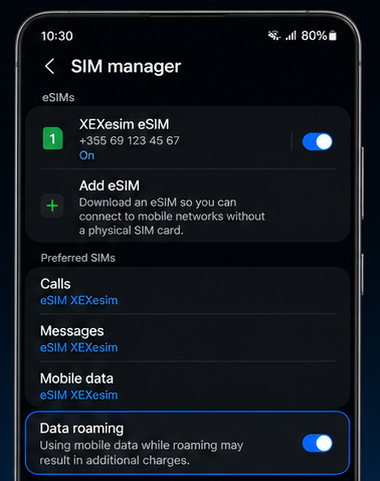
After installation, enable the eSIM, set it as Mobile Data and turn on Data Roaming.
Quick overview
Receive QR code by email
Open Phone Settings
Add eSIM -> Scan QR code
Confirm & download
Set as data line & travel!
Important tips
Toggle Airplane Mode on and off.
Restart your phone.
Check that Data Roaming is ON.
Check that the eSIM is selected for Mobile Data.
Important
Not sure if your device supports eSIM? Check your phone's settings for a "Mobile Data -> Add eSIM" option, or visit the manufacturer's website.
Buy your eSIM now and receive your QR code in minutes.